
 ios
ios android
 tiktok
 instagram
 facebook
 bluesky
 x
x reddit
 threads
 About
About AKESO Health Tracker
 Resources
 Blog
Blog FAQ
FAQ Contact
 AKESO Forum
Once you have enabled HealthKit (iOS) or Health Connect (Android) syncing, visit your daily log to sync your AKESO data with your device’s native health app.
Currently, you can sync saved data for heart rate, weight, sleep, and blood glucose.
Syncing your data
1. To sync your saved health data using HealthKit or Health Connect, first visit your daily log.

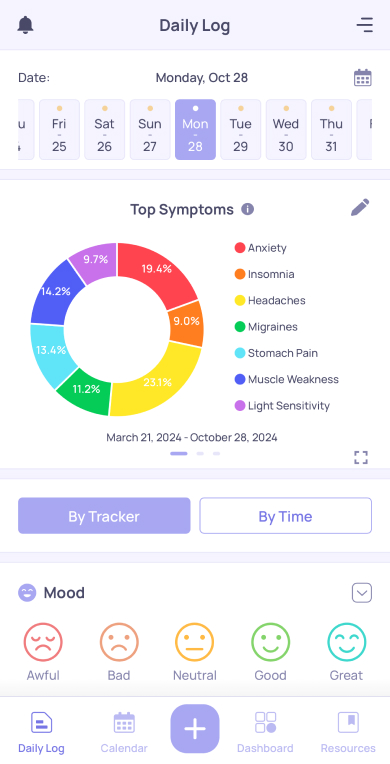
2. Scroll down to locate the tracker you want to sync data for.
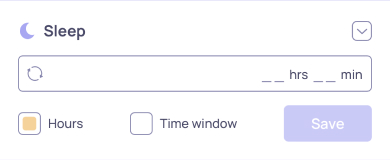
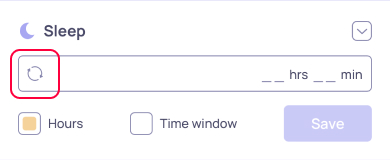
3. Tap the grey sync icon below the tracker’s name.
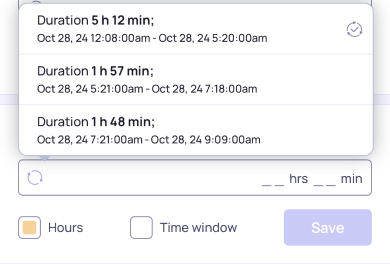
4. If there is data available to sync for the selected date, your four most recent data points for that tracker will appear.
If there is no data available to sync for the selected date, the sync icon will turn red, and an error message will be displayed.
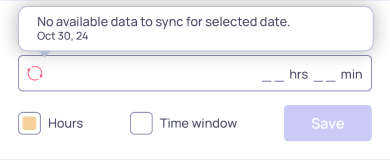
To continue syncing, try selecting a new date or available tracker.
5. Next, tap on the data point you wish to sync.
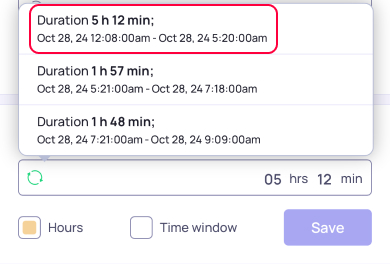
Data that has already been synced to your native health app will be marked with a checkmark.

6. Once the selected data point has been successfully synced, the sync icon will turn green.
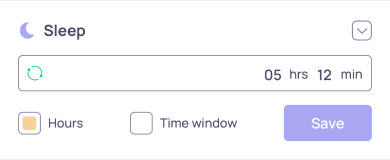
7. Repeat steps 3-5 for each additional data point you’d like to sync.