
 ios
ios android
 tiktok
 instagram
 facebook
 bluesky
 x
x reddit
 threads
 About
About AKESO Health Tracker
 Resources
 Blog
Blog FAQ
FAQ Contact
 AKESO Forum
Welcome to your daily log! AKESO aims to make tracking your health data effortless and intuitive.
Daily Log Calendar
When you visit your daily log, you’ll first be greeted with an intuitive calendar.

Look for the highlighted box to find today’s date.
Slide your finger left or right to scroll through past and future dates.
Accessing the Full-Sized Calendar
Need to access a date further in the future? Tap the calendar icon in the upper-right corner to open a full-sized calendar.

Here, you can add healthcare data to any date.

Scroll through the calendar using the left and right arrows or by tapping the pencil icon to enter a custom date.


You can also add a custom date by tapping the month and day at the top of the calendar.
Quickly return to the current date by tapping the “TODAY” button in the lower-left corner.

Pinned Charts (Premium Feature)
Next, as an AKESO Premium user, you will find your pinned charts for easy, on-demand data visualization.

You can select up to 3 of your favorite charts from your dashboard to display here. Simply swipe left or right to toggle between your pinned charts.
Tap the  to learn more about your current chart type.


View your chart in fullscreen by tapping the  icon.
icon.

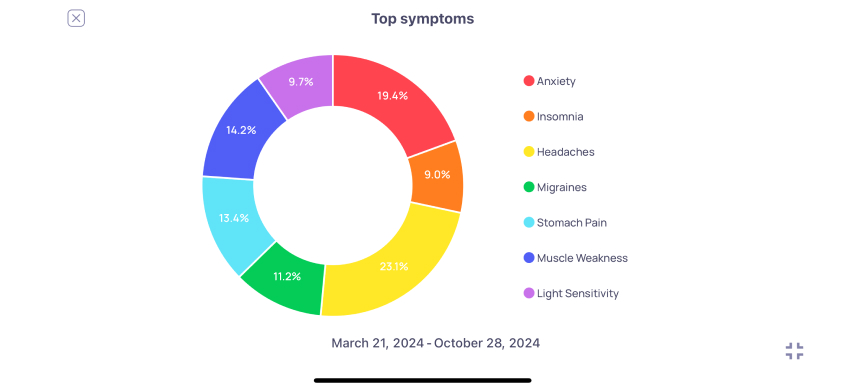
Want to edit your pinned charts? Tap the pencil to quickly jump to the edit chart menu.
To learn more about customizing your charts and pinning your favorites, visit our chart settings guide.
Sorting Your Data
Under your pinned charts, you’ll find two options for sorting your daily healthcare data.
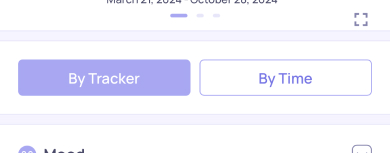
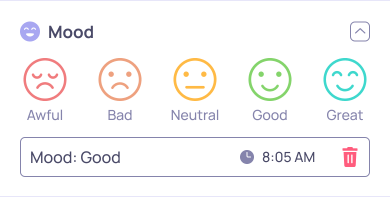
Choose to sort your data by tracker to view your most recent data entries under each healthcare tracker.
Expand or collapse this information with the arrow in the right corner.
Or view your data by time to see all your daily healthcare data at a glance.

This tab organizes your data in chronological order and only includes the trackers you chose to use that day.